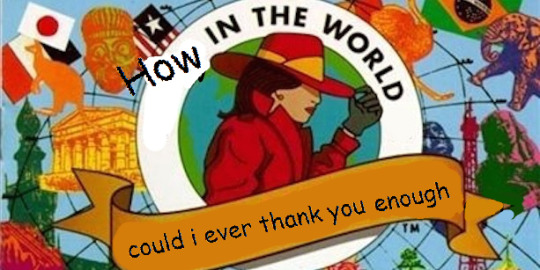
you ever see an image and think “i may see something as funny as this again, but never anything funnier”
ALL RIGHT YOU LITTLE SHITS GET READY TO LEARN SOMETHING
yOU WANNA ROTATE TEXT?! well mod 5ider has got the fucking t r i c k s homie
Step one: Type something.
P E R F E C T.
sTEP TWO: FIND THE RESIZE OPTION.
You see that little resize button on your menu?
Yeah, that’s the one. you can just click that shit!
On older versions of MS Paint there isn’t this option, but you can always find it with a quick right-click.
THERE IT FUCKING IS!!!!!
STEP THREE: STRETCH AND SKEW
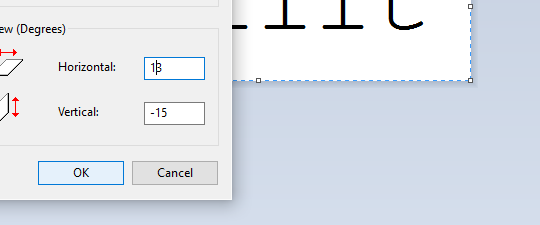
When you click resize, this menu comes up.
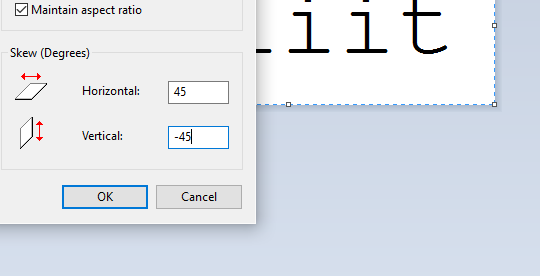
I’m sure you all have seen this menu before, but for those who don’t, I’ll clue you in. The top options control the length and respective width of your artwork. you can choose to alter them separately,
or all together
Using that little “Maintain Aspect Ration” checkbox there, but that’s not important right now.
wHat we’re focusing on is that skew option on the botttom.
with that you can t i l t whatever image yuo have on your screen to the left
to the right
up
and down.
“BUT 5IDER!!!!!” you say, “THAT DOESN’T LOOK ROTATED AT ALL”
wELL HOLD ON TO YOUR LUG NUTS BECAUSE I T ’ S T I M E F O R
STEP 4: ULTRA COMBOOOOOOOO!!!!!
now, comes the fun part. unlike its aspect ratio locked cousin, the stretch and skew options work independently from one another. So, you can do things like
and
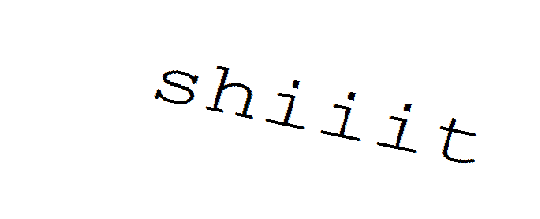
But that’s neither here nor there… what gets REALLY interesting is when your ratios are in opposite directions..
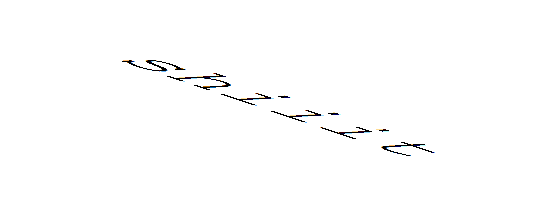
HOME RUN!
Now, before I let you go, I found out through trial and error that an angle doesn’t exactly match up with its negative dimension…
(Step 5: Angular ratios)
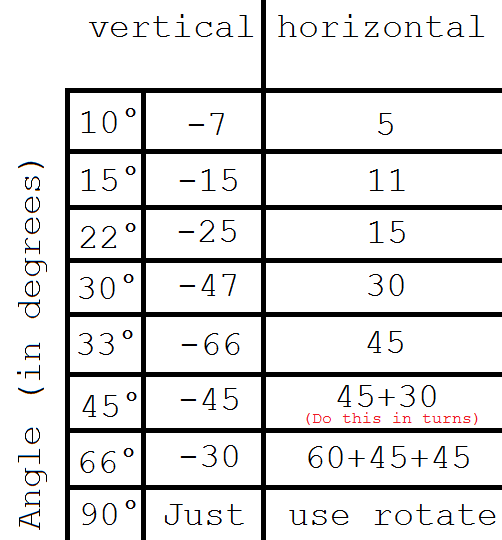
See? there’s a little offset between vertical and horizontal if your expect your text to appear natural instead of tilted. The only places that this offset reaches zero is at 90° (of course) and the rare and extremely dangerous 45° rotations.
Fortunately, I’ve already mapped out a few angles that I find are very useful in my works so, for your viewing pleasure… i present my handy dandy graph
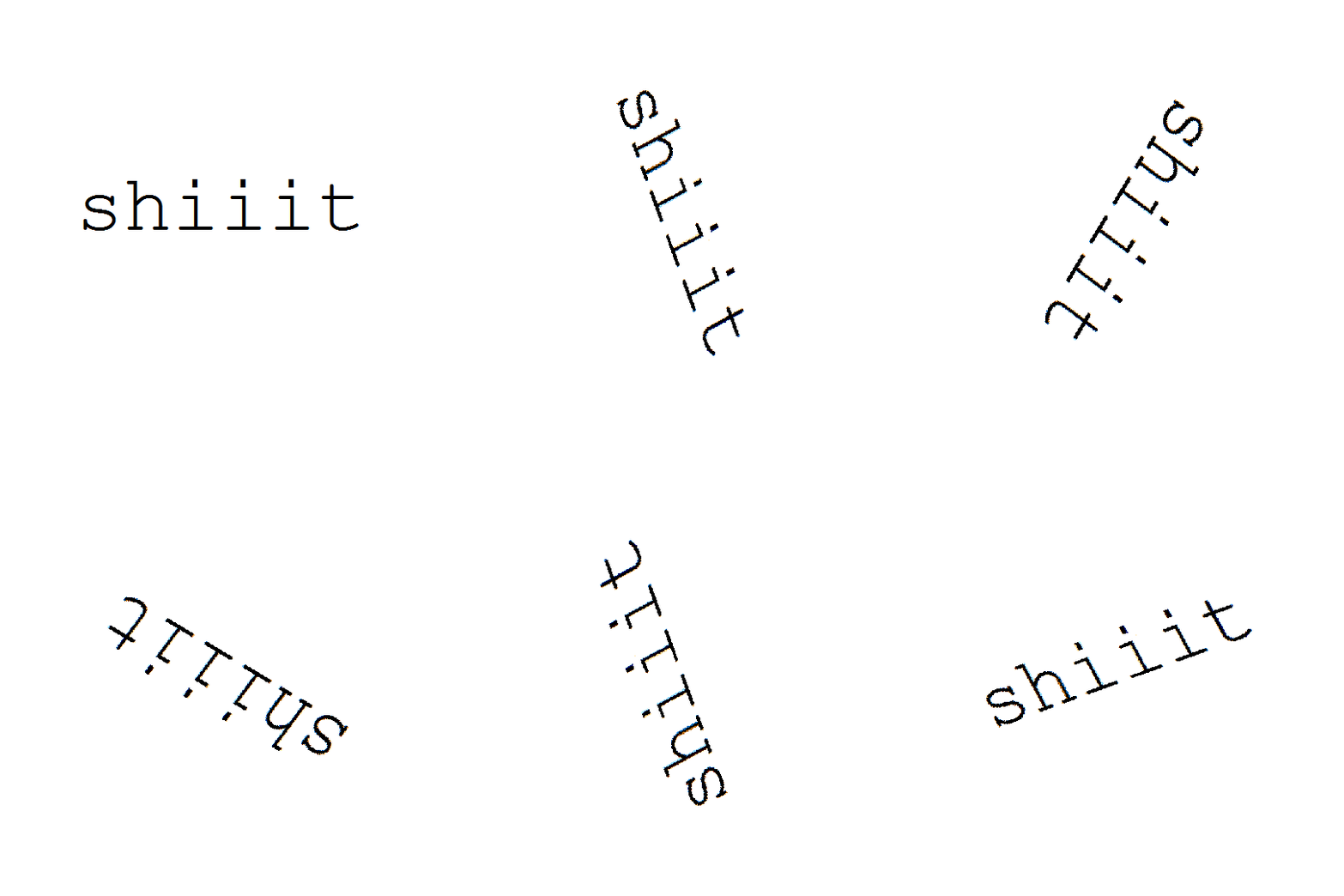
All you have to do is match up your desired angle up to its respective complement and you have quickly and efficiently rotated your first word in MS Paint.
Have fun!
You know, you guys really seemed to enjoy this post.
Should I do more MS Paint tutorials in the future?



 PTA archive